
Minimalist launcher: what it is and how to choose one
Your home screen is the page you see most often every day. Change it, and you change the starting point of every gesture.
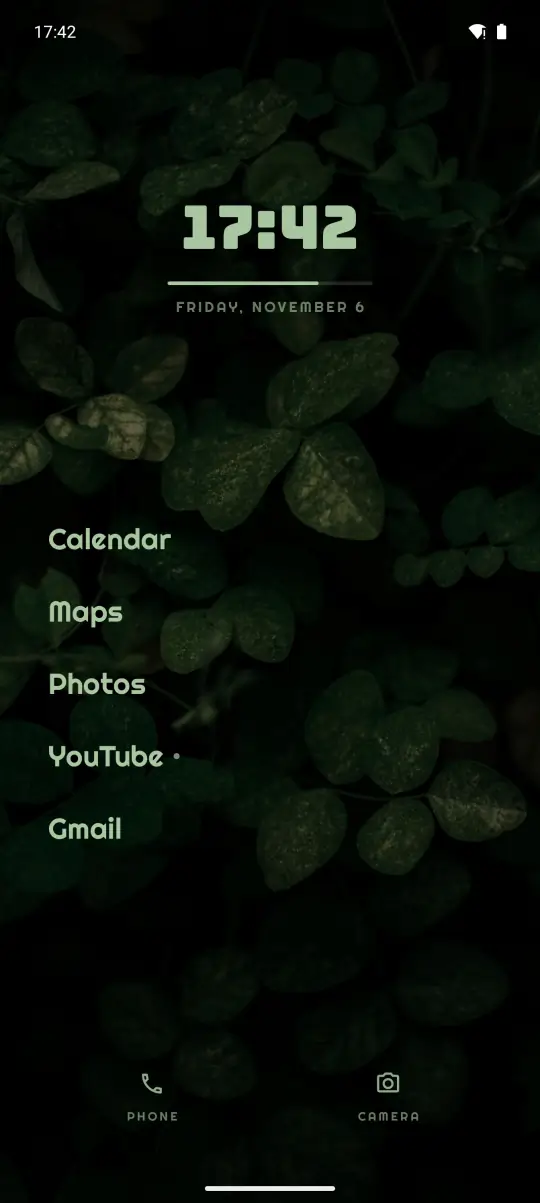
A minimalist launcher is an app that replaces your Android home screen with something calmer: fewer icons, fewer colors, fewer things asking for your attention. It sounds minor, but your home screen is the page you see more than any other each day. Every app you open, on purpose or not, starts there. Here's what a minimalist launcher changes, and how to pick one.
What is a launcher, anyway?
On Android, the "launcher" is the app that shows your home screen, your app list and search. Your phone comes with one from the manufacturer. You can swap it for another from Google Play, and switch back anytime under Settings › Apps › Default apps › Home app (the wording varies by brand).
Changing launchers doesn't delete anything. Your apps, data and settings stay put; only the way you reach them changes.
What a minimalist launcher changes
Standard home screens are built to get you opening apps: colorful icons, red notification badges, widgets that move. A minimalist launcher does the opposite:
- words instead of icons: a list of names catches the eye far less than a grid of logos;
- only a few apps up front: your everyday tools, everything else in search;
- no badges: nothing begging for attention every time you unlock;
- fast search: type two letters and the app is there, when you actually need it.
The result: you open fewer apps "by accident", because nothing invites you to.
How to choose a minimalist launcher
1. Text or icons?
This is the basic choice. A text list is the cleanest way to cut visual pull. Some launchers keep small monochrome icons. Go with what suits you, but the plainer it is, the stronger the effect.
2. Does it add friction?
A plain home screen helps, but it isn't always enough. If your thumb already knows how to search "Insta", the reflex survives. Check whether the launcher can slow down the apps that pull you in: a pause before opening, time limits, blocked hours. And make sure those rules also apply when you open the app from a notification, or getting around them is too easy.
3. Privacy
A launcher sees a lot: your app list, what you open, and when. Ask the right questions:
- Do you need to create an account?
- Are there ads or analytics?
- Where is your data stored, on the phone or on a server?
- If it asks for the accessibility service, does it clearly explain what it does with it?
4. The business model
Free with ads, subscription, one-time purchase: the model tells you a lot about the incentives. An app funded by your attention wants you to stay. A subscription makes sense for a service with monthly costs, like servers or content. A one-time purchase is often the best fit for a tool that runs on your phone and is meant to fade into the background.
5. What still works
Minimalism shouldn't make your phone a pain. Make sure calls, messages, the camera and maps stay easy to reach, and that search is genuinely fast. A launcher you uninstall after three days because it gets in the way helps no one.
6. Does it feel like yours?
Simple doesn't have to mean dull. Light or dark themes, fonts, clock, wallpaper: if you like how it looks, you'll keep it.
Wabima, briefly
Wabima is our minimalist launcher for Android. Here's how it lines up with those criteria:
- Text-only home screen: your apps as words and a clock, no badges.
- Built-in friction: a pause of 5 seconds to a minute before the apps you pick, including from notifications; time limits, blocked hours, a duration reminder, focus sessions, strict mode.
- Privacy: no account, no ads, no tracking. The accessibility service only reads the name of the app in the foreground.
- Price: a 7-day trial, then a one-time purchase (€8.99, or the local price on Google Play), no subscription.
- Customization: 7 light and dark themes, 10 clock styles, 34 clock fonts, generated and photo wallpapers, 11 languages.
- Compatibility: Android 8 or later.
Getting started on the right foot
- Install the launcher and set it as your home screen.
- Keep four or five apps as favorites, no more.
- Give it a week before you judge: for the first few days your thumb will still look for the old icons. That's normal.
- Only add rules to the apps that still spill over.
Want to try it? Wabima is free for 7 days on Google Play. Related reading: the dumbphone effect without switching phones and how to block apps on Android without deleting them.
Guides
- Why you pay once, and why there are no trackers
- How to reduce screen time on Android without fighting yourself
- How to block apps on Android without deleting them
- The dumbphone effect, without switching phones
- How to stop doomscrolling, especially at night
- Focus mode on Android: work without getting pulled into your phone