
Focus mode on Android: work without getting pulled into your phone
Every glance at your phone breaks your train of thought. A good focus mode makes distracting apps unavailable for a while, then gives them back.
You sit down to work, study or write. Ten minutes later the phone is in your hand, and you're not quite sure why. Each glance looks harmless, but it breaks your train of thought, and it takes a while to find your place again. A focus mode on Android is there for exactly this: make the distracting apps unavailable for a set time, then give them back. Here are the options, and how to make one actually stick.
What a good focus mode should do
- A clear duration: a block of work that starts and ends, not a vague ban.
- The right apps: social media and video, not the phone, the camera or the app you need for work.
- Notifications too: blocking an app while its notifications still come through leaves the door ajar.
- A way out, unless you choose to give that up yourself.
Android's built-in Focus mode
In Settings › Digital Wellbeing › Focus mode (on Pixel and many other phones), you pick a list of apps to pause, then turn it on by hand or on a schedule. It's free and well made. Depending on the version, it has no ready-made session timer, and you can stop it at any moment: that's by design, but if you want to commit for the whole session, you'll need something else. Some manufacturers rename it or replace it with their own modes.
Wabima's focus session
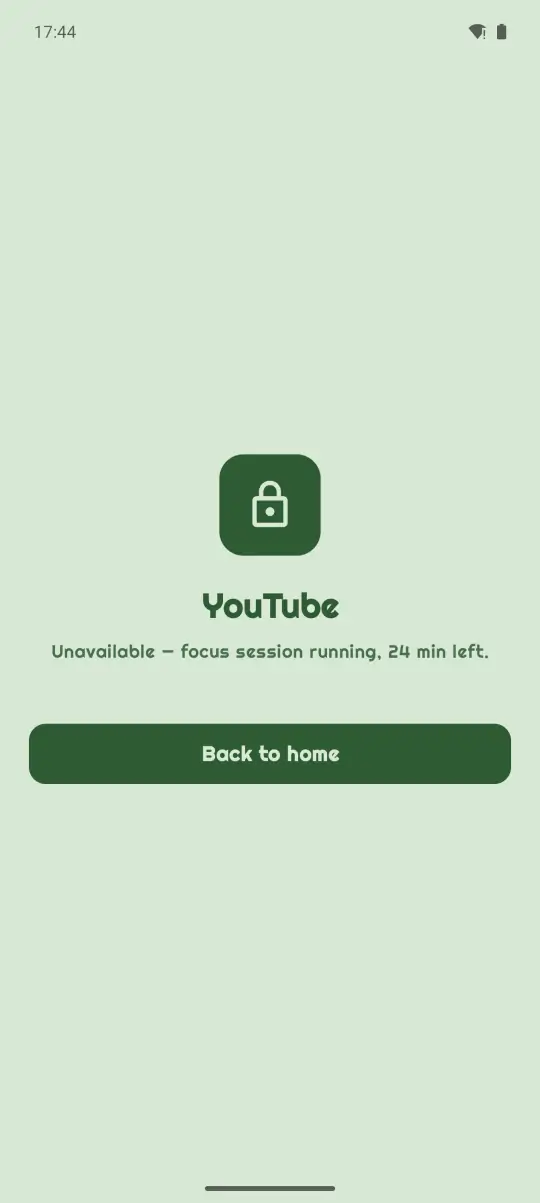
Wabima is a minimalist launcher with a built-in app blocker. Its focus session is a timer: while it runs, the apps you picked won't open, and their notifications are blocked too.
A duration in one tap
15, 25 or 50 minutes, or any length you like. 25 minutes is a Pomodoro-style block; 50 minutes is a proper deep-work session. The time left is shown, and you can stop the session if something unexpected comes up.
Block everything, or just one group
You can target all apps, or just one group ("social media", "video", "games"). Phone, Messages, Camera, Emergency, Settings and Clock are never blocked.
If you don't trust yourself
Strict mode stops you from ending a session early, or loosening your other rules, until the deadline you set (one day, three days, a week). Handy during exams or a crunch at work; keep it for those times.
Step by step: a phone-free work session
- Install Wabima and set it as your home screen.
- Create a group with the apps that distract you most.
- Open Settings › Focus › Focus session, pick the group and a duration.
- Tap Start, put the phone face down, and work.
- When it ends, take a real break, away from screens if you can, before the next one.
What actually makes the difference
- Decide first: write one line about what you'll do during the session. A fuzzy goal invites distractions.
- Start small: two successful 25-minute sessions beat one abandoned 50-minute one.
- Keep the rest of the day calm: a few seconds of pause on your reflex apps stops your focus from collapsing the moment the session ends.
You can try everything for free: Wabima is free for 7 days on Google Play, then a one-time purchase (€8.99, or the local price Google Play shows in your currency). Read next: how to block apps on Android without deleting them and the dumbphone effect without switching phones.
Guides
- Why you pay once, and why there are no trackers
- How to reduce screen time on Android without fighting yourself
- How to block apps on Android without deleting them
- Minimalist launcher: what it is and how to choose one
- The dumbphone effect, without switching phones
- How to stop doomscrolling, especially at night