
How to reduce screen time on Android without fighting yourself
Willpower rarely wins against apps built to keep you around. What works better is changing your environment, one setting at a time.
Want to reduce screen time on Android, but every resolution lasts about three days? That's normal. The most gripping apps are built by entire teams whose job is to keep you around, and willpower alone isn't a fair fight. The good news: you don't need more willpower. You need a phone that pushes you a little less. Here's a five-step method, from the gentlest to the firmest.
1. Look at where your time actually goes
Before changing anything, check the numbers. Android has a built-in screen time dashboard, usually under Settings › Digital Wellbeing & parental controls. The name and location vary by brand (Samsung, Xiaomi, OnePlus and others all put it somewhere slightly different), but nearly every recent phone has one.
The daily total matters less than:
- the two or three apps that take most of it;
- the number of unlocks, which often says more than the duration;
- the moments: in bed at night, before getting up, any time you're waiting.
Write them down. The rest of this method targets those apps and those moments, not your whole phone.
2. Understand the reflex
Most app opens aren't decisions. You unlock, your thumb goes to the same icon on its own, and you're in before you've thought about it. That automatic gesture is what you want to break, not your wish to relax.
Hence a simple idea: add a little friction. Not a wall, just enough to turn the gesture back into a choice. A few seconds is often enough to ask yourself, "do I actually want this right now?"
3. Reduce screen time on Android with built-in tools
App timers
In Digital Wellbeing, you can set a timer per app. When it runs out, the app is greyed out until tomorrow. It works well, especially for one or two apps you really want to keep at arm's length.
Bedtime mode
Depending on the phone, it's called Bedtime mode, Sleep mode or something else. It can silence notifications and turn the screen grayscale at a set time. If your evenings are the problem, start here.
Grayscale
A black-and-white screen is far less appealing: the bright colors of icons and videos are designed to catch your eye. A study of US college students (Holte and Ferraro, 2020) measured roughly 38 fewer minutes of screen time a day in grayscale. On Android, the option usually lives in the accessibility or Digital Wellbeing settings, sometimes under "color correction".
4. Change your home screen
Your home screen is the starting point of every gesture. A grid of colorful icons with red badges is a standing invitation. A few ideas:
- move the most gripping apps off the main screen and into the app drawer;
- turn off notification badges;
- keep only tools (messages, calendar, maps) one tap away.
A minimalist launcher goes further: it swaps icons for a list of words, which strips away most of the visual pull.
5. Add rules where it hurts
This is where Wabima comes in. It's a minimalist launcher for Android that combines a text-only home screen with per-app rules:
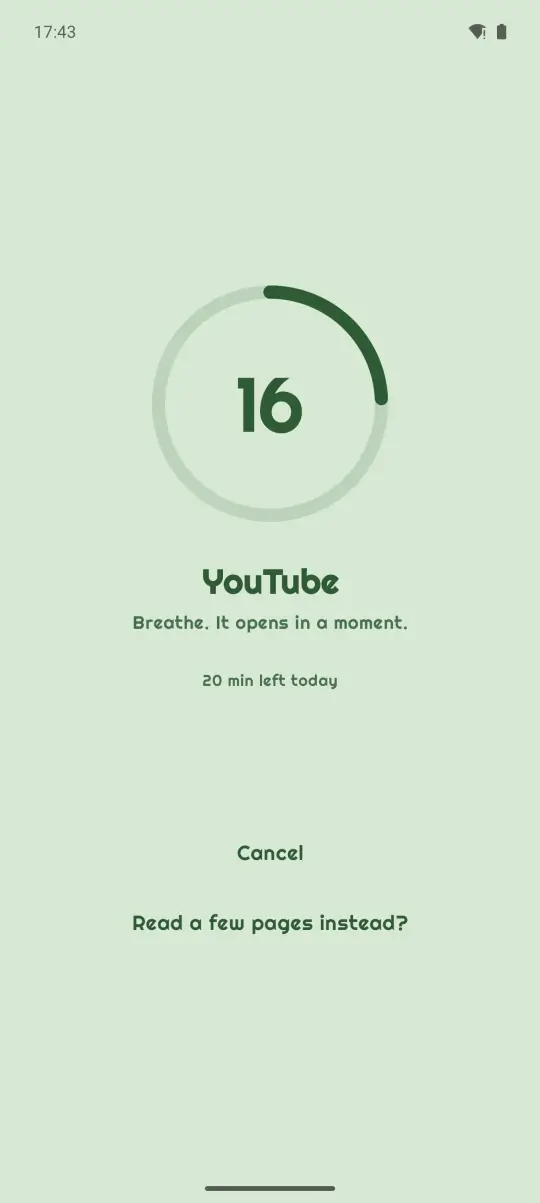
- Pause before opening: a countdown of 5 seconds to a minute before the apps you pick, even when you come from a notification or the recent apps. Cancel, or open the app once the pause is over.
- Daily limit: from 5 minutes to 2 hours per app, or one allowance shared by a group, like "all my social media".
- Blocked hours: make an app unavailable at night, at work or in meetings.
- Duration reminder: when you open an app, decide how long to stay, and get a reminder when time is up.
- Focus sessions of 15, 25 or 50 minutes, plus strict mode if you want to lock your rules for a while.
Outside strict mode, every rule can be loosened. The point isn't to lock you up. It's to put a moment of thought back where there wasn't one.
Replace, don't just remove
If you take scrolling away and put nothing in its place, the gap fills up fast. Keep an alternative within thumb's reach: a book, a breathing exercise, a note to write. In Wabima, the Space is one swipe from the home screen: guided breathing, notes, a to-do list, voice memos, an e-book reader, a daily sudoku and a daily chess puzzle.
An order that works
- Measure for a week.
- Tidy your home screen and turn off badges.
- Add a pause to the two or three apps you open on reflex.
- Protect your evenings with blocked hours or Bedtime mode.
- Add a daily limit only if the pause isn't enough.
One thing at a time. Every step has to stay livable, or you'll end up switching it all off.
To try the full approach, Wabima is free for 7 days on Google Play, then a one-time purchase (€8.99, or the local price Google Play shows in your currency). Related reading: how to block apps on Android without deleting them and the dumbphone effect without switching phones.
Guides
- Why you pay once, and why there are no trackers
- How to block apps on Android without deleting them
- Minimalist launcher: what it is and how to choose one
- The dumbphone effect, without switching phones
- How to stop doomscrolling, especially at night
- Focus mode on Android: work without getting pulled into your phone